-
FIND AND REPLACE MATERIALS
FOR REVIT

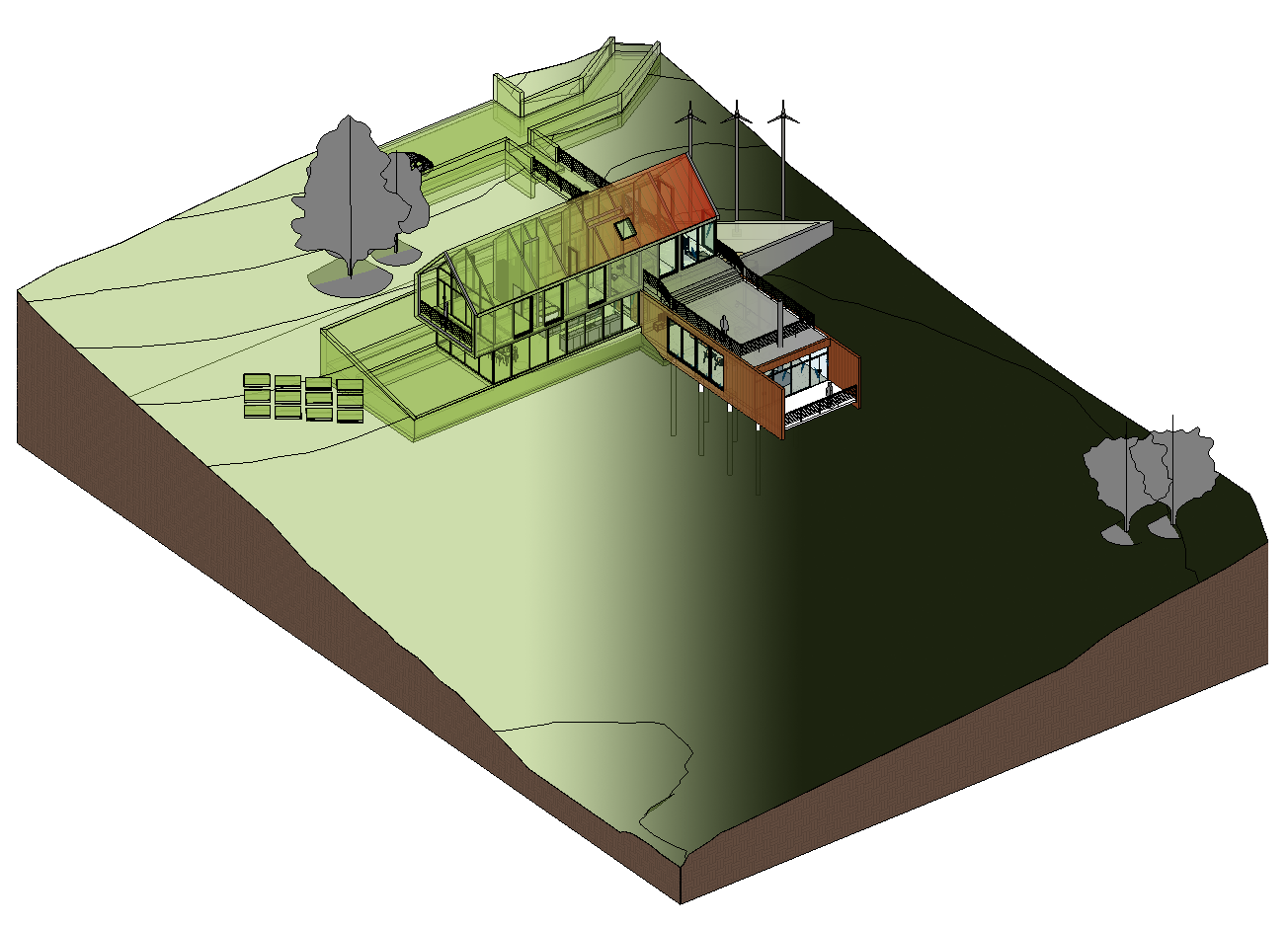
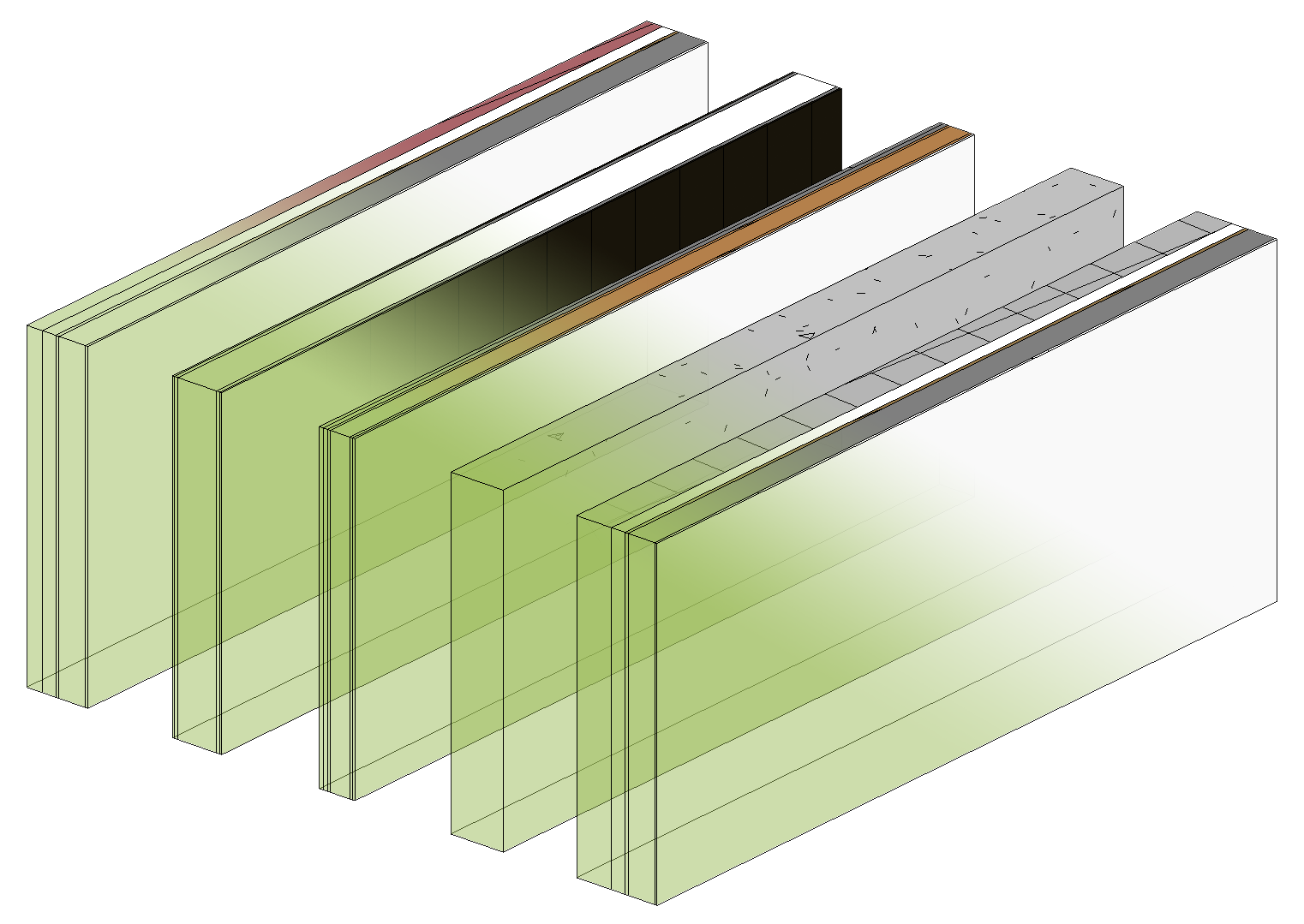
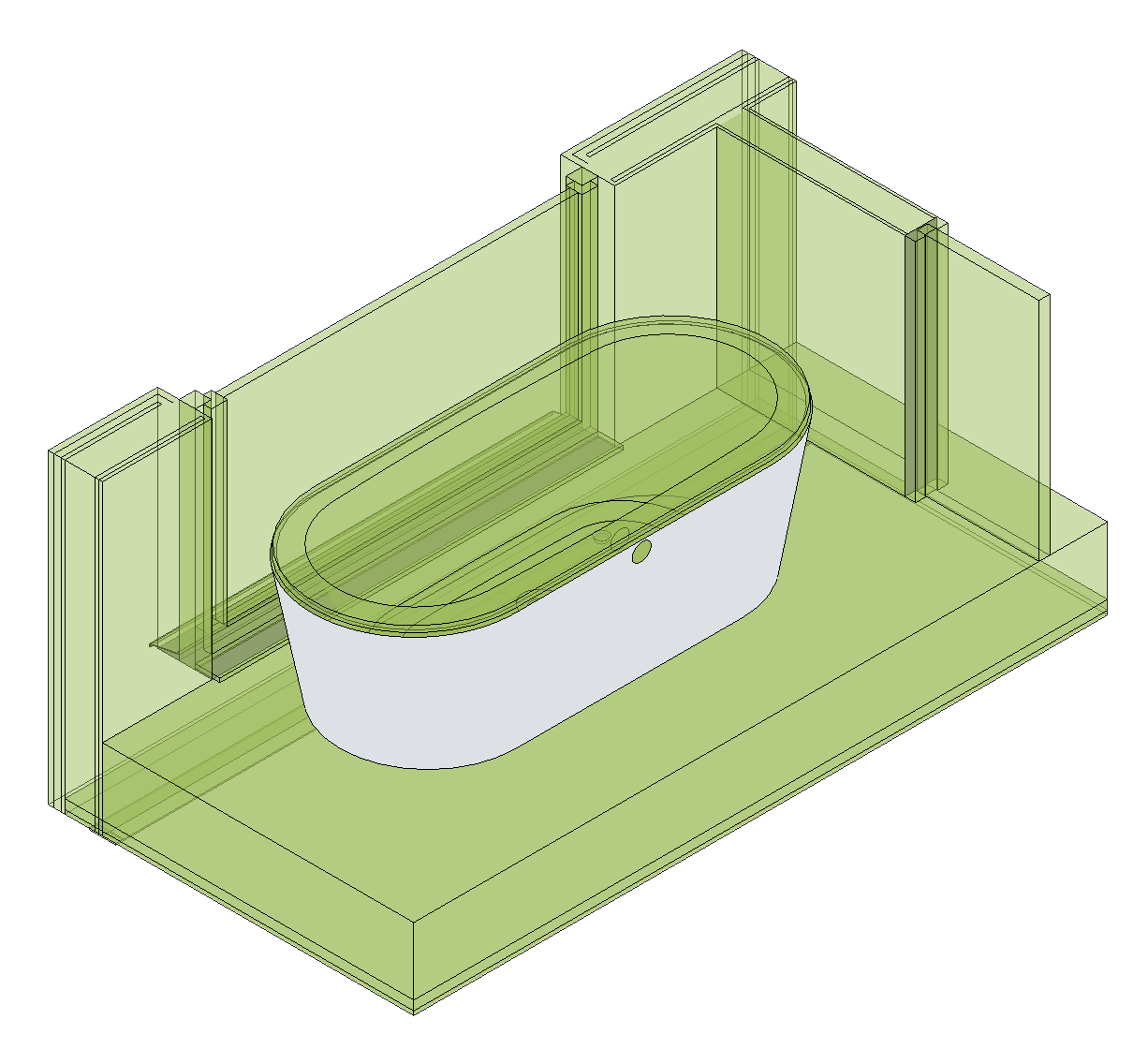
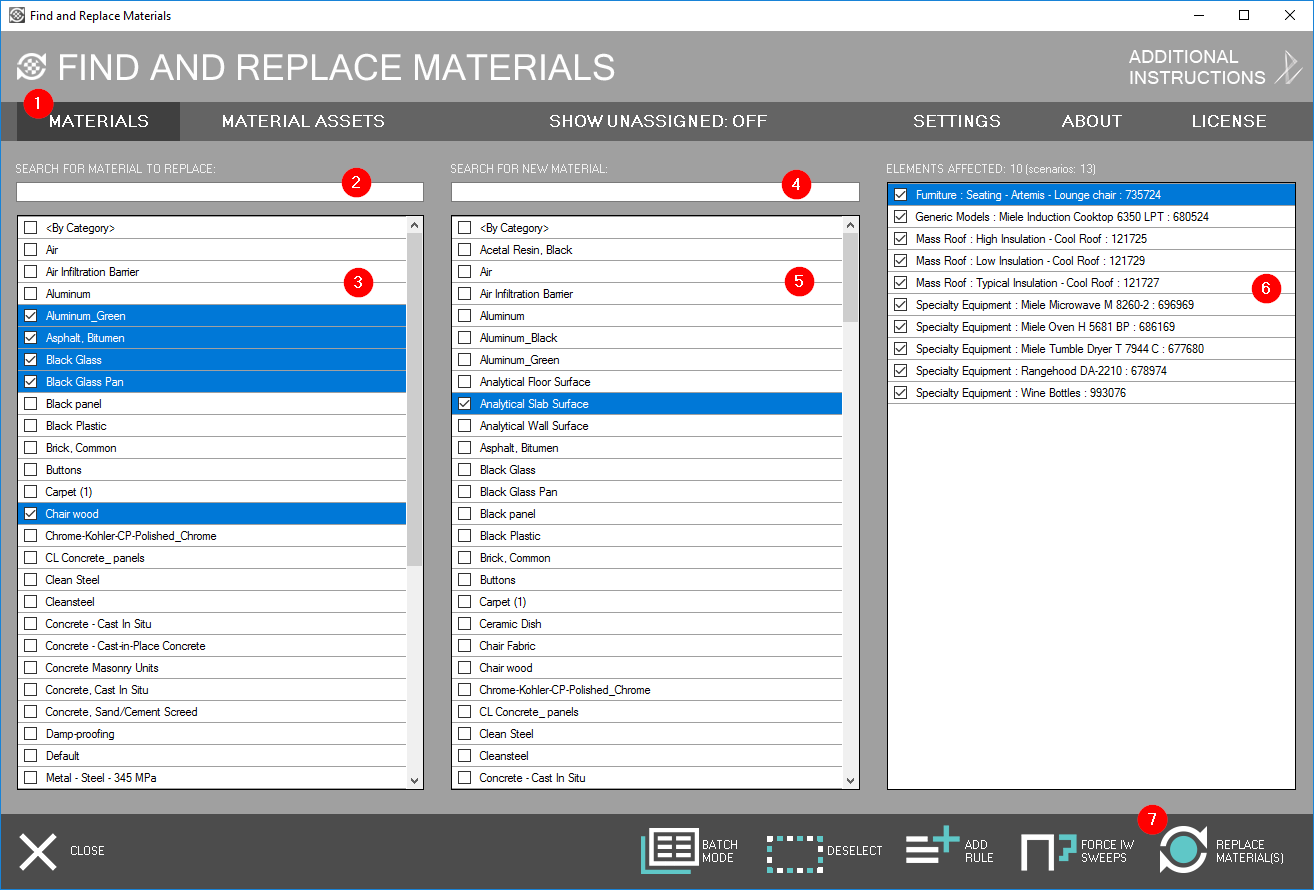
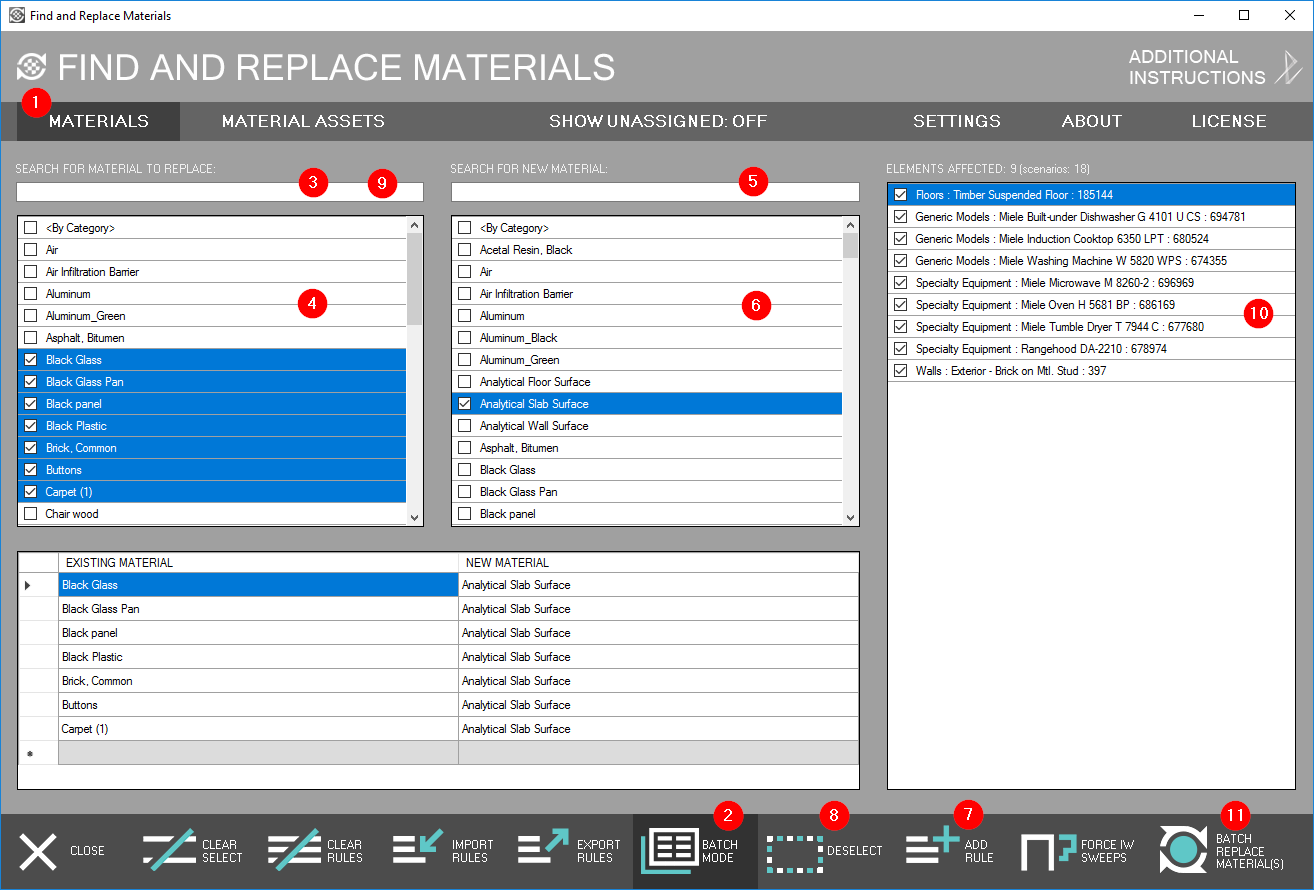
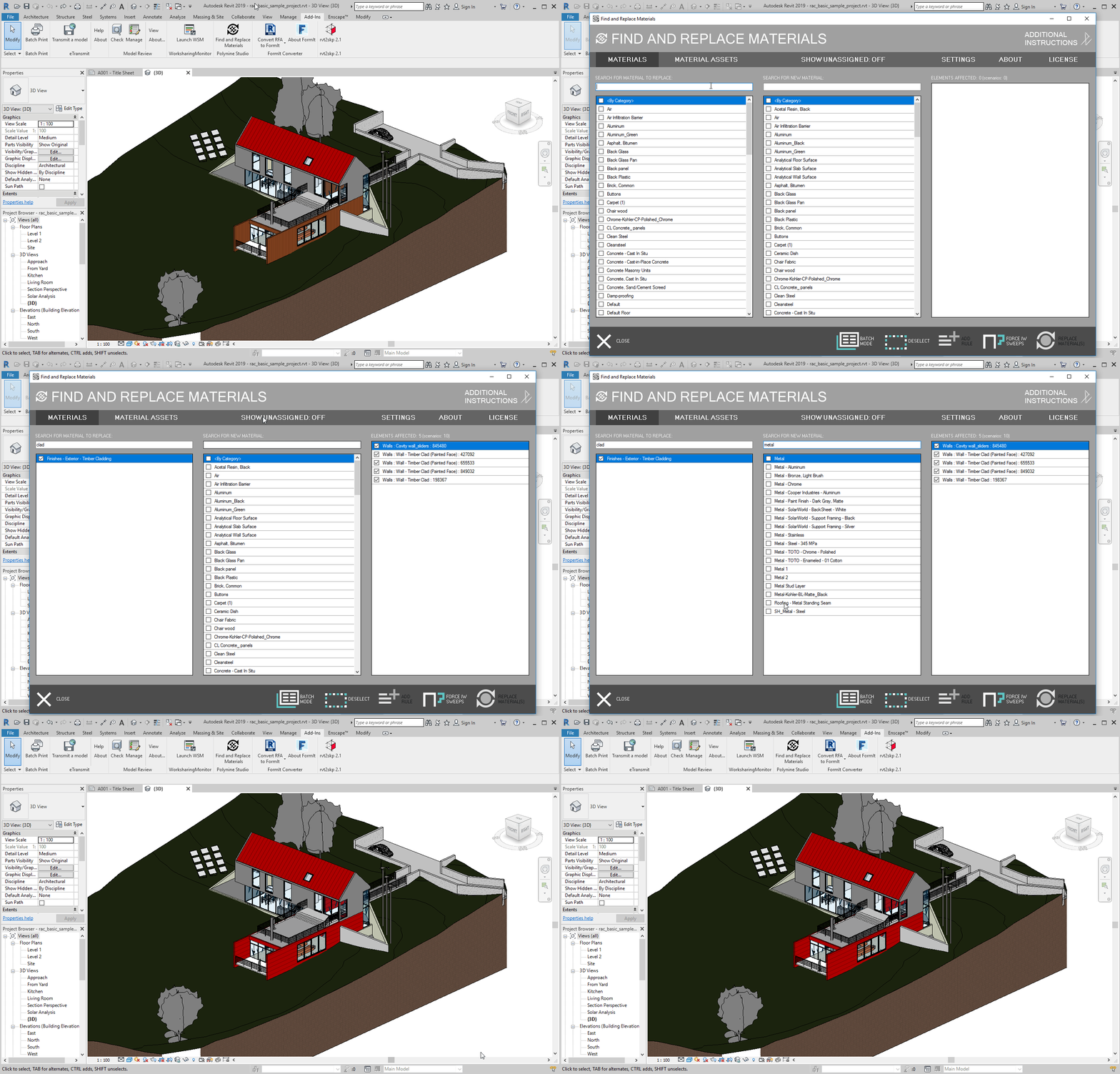
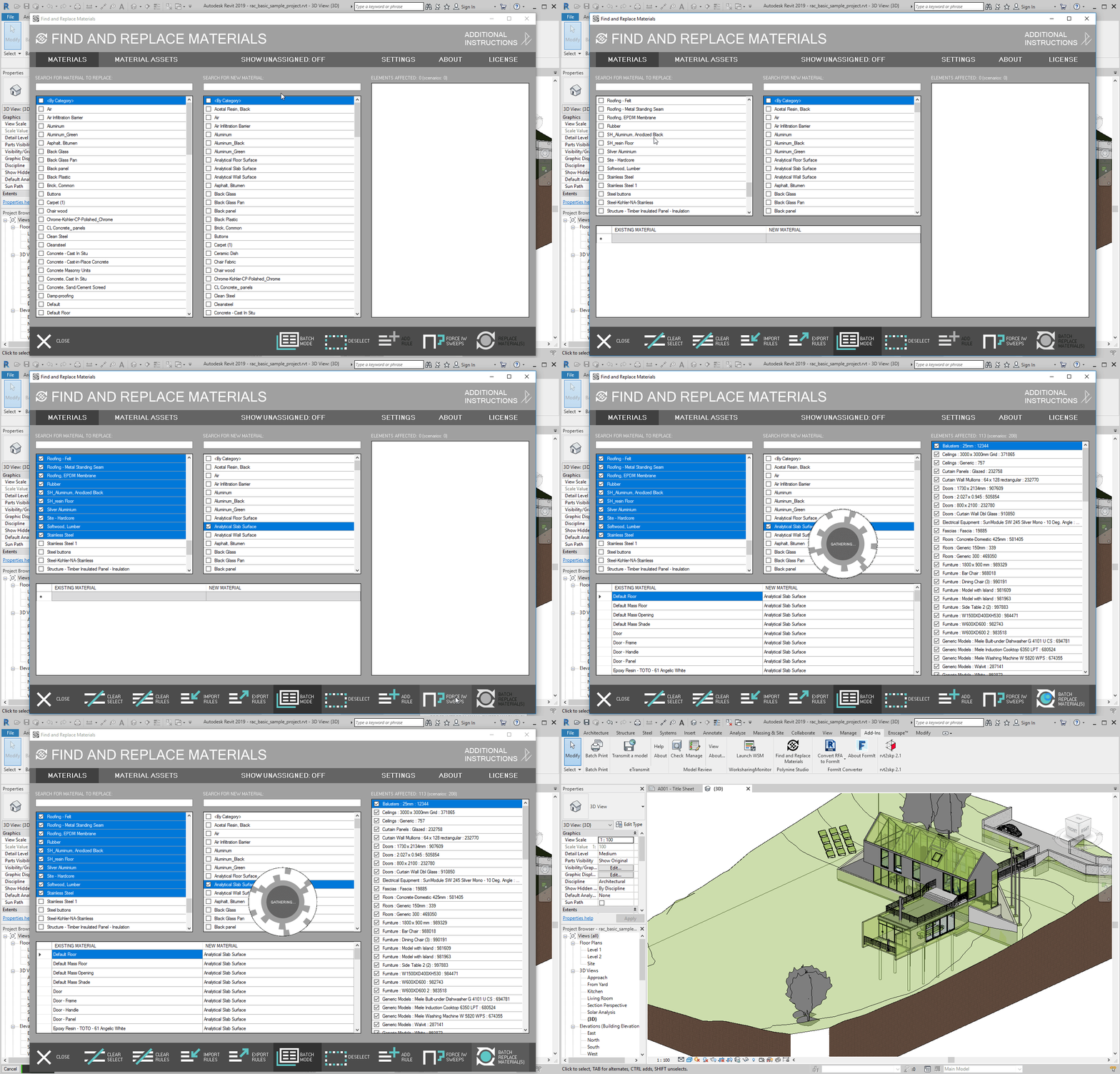
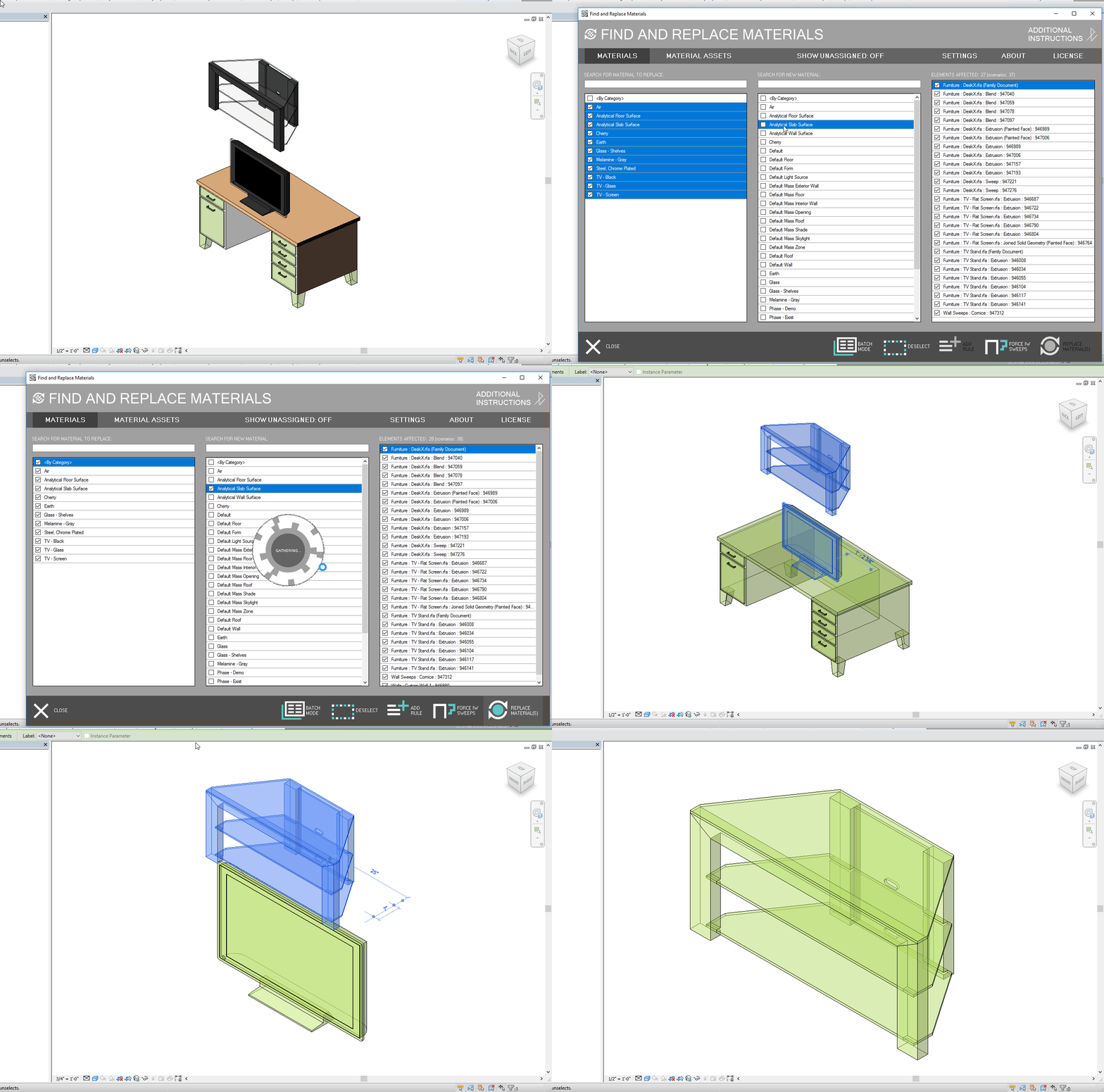
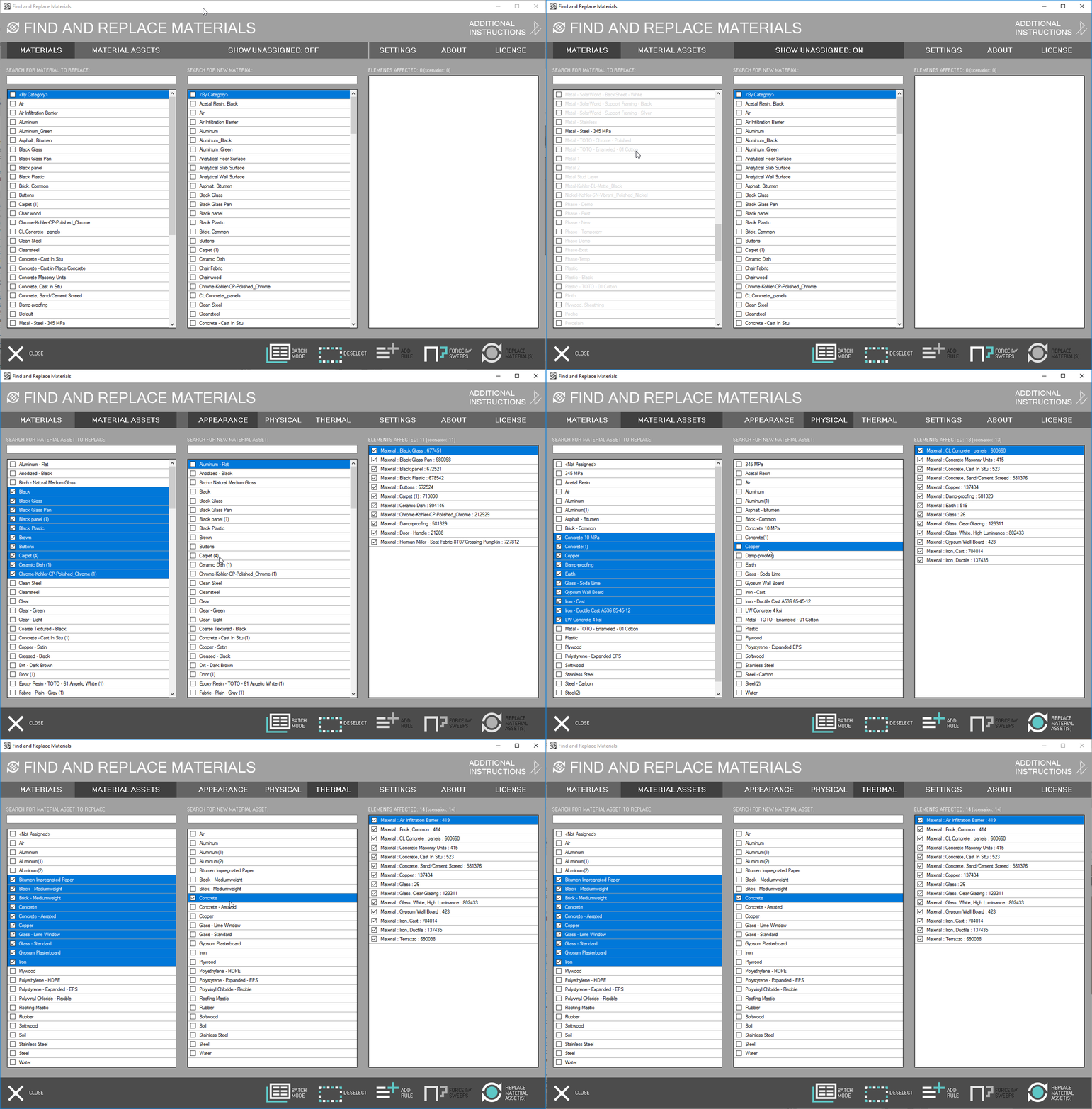
The Find and Replace Materials for Revit plugin finds assigned materials in a project document and replaces them with other materials selected by the user. Multiple materials can be selected to be assigned to a single material. Additionally, material assignment rules can be saved to a CSV file within the “batch mode” for later use.
This is a powerful tool for architects and BIM managers that are tasked with standardizing materials within projects. Visualization artists can also save on material setup time, by consolidating like materials before rendering.
Revit versions supported: Revit 2020, Revit 2019, Revit 2018, Revit 2017
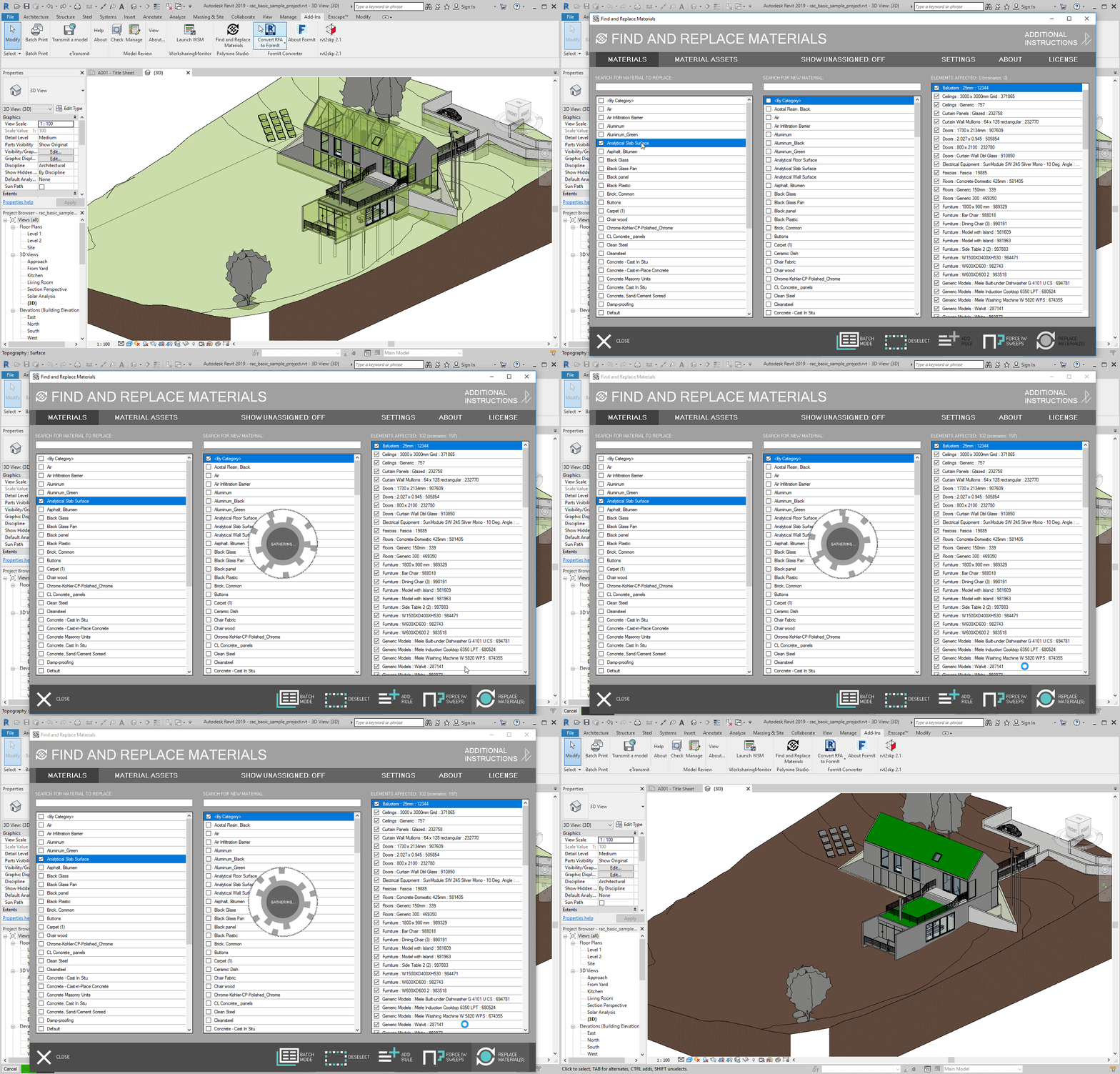
Download the plug-in installer from the Autodesk App Store. Run the installer: Revit must be closed. For single licenses, the plug-in will run in Trial mode until it is activated. You may need to restart the Autodesk product to activate the plug-in.
To uninstall this plug-in, click Control Panel > Programs > Programs and Features (Windows 7 / 8 / 8.1/ 10) just as you would uninstall any other application from your system.
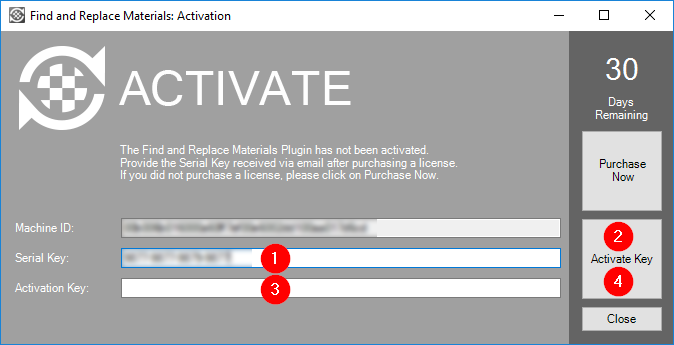
You can downlaod the full plugin by following the download link below. The plugin will work as a trial for 30 days after installation. Please activate the plugin within this period by using the serial key provided when purchasing a license. To purchase a license click on the link in the license section below.
Revit versions supported: Revit 2020, Revit 2019, Revit 2018, Revit 2017
There are two types of licenses for the Find and Replace Materials for Revit plugin: Single Subscription License & Domain Subscription License. The Single Subscription License is activated on a single machine, with the option to deactivate for transferring to another machine. The Domain Subscription License, can be used on an unlimited number of computers within a domain. Both licenses are subscription based licenses for the Revit versions supported: Revit 2020, Revit 2019, Revit 2018, Revit 2017.
You can purchase a license by following the links below.